
Striving to remove barriers that prevent us from building Vibrant, Diverse, Inclusive, Accessible Communities!
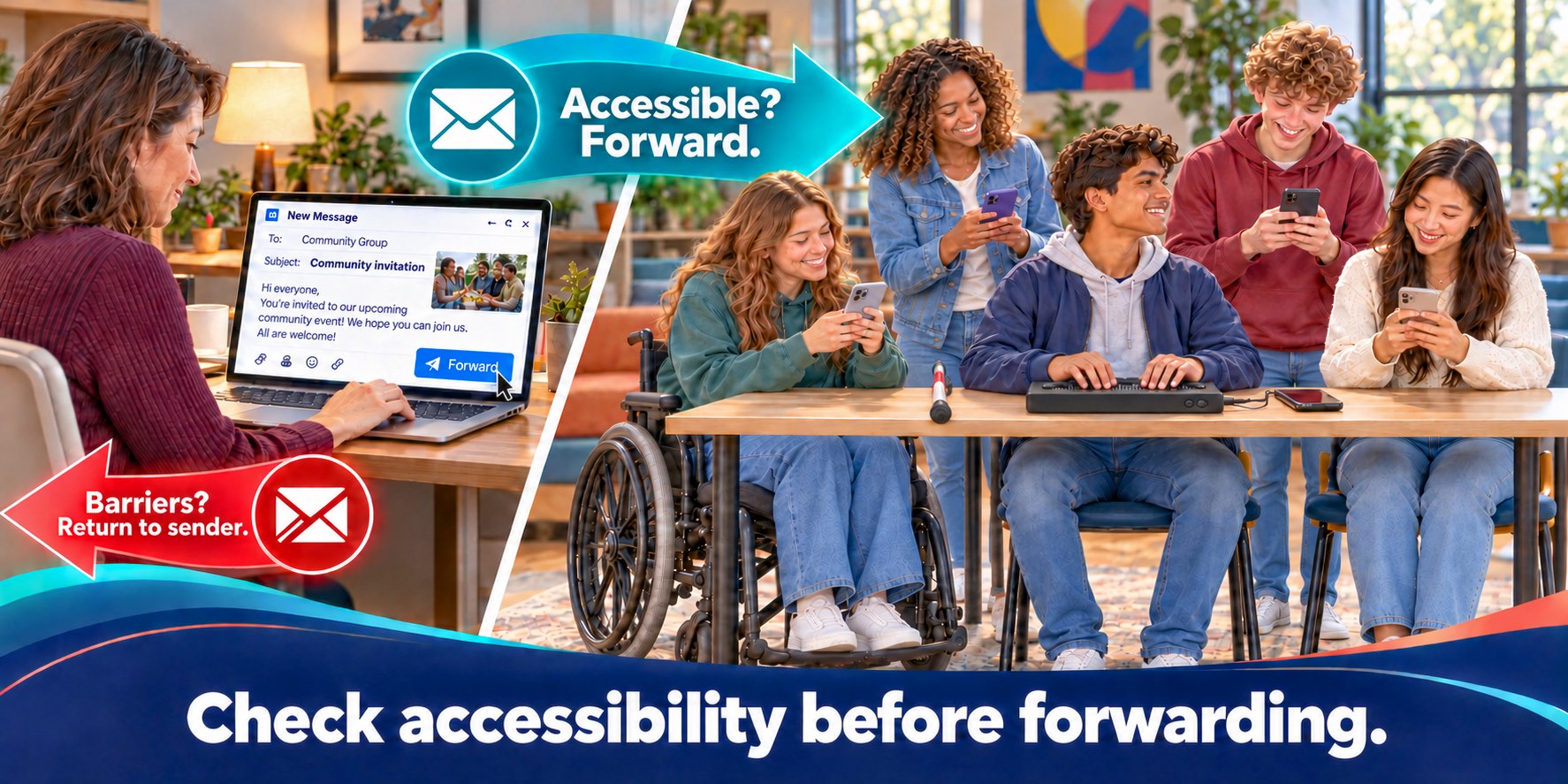
Someone asks you to forward an email message to your community. Before you send it on, you can tell whether every member will be able to read it, including members who are Blind or have Low Vision.
What accessible means
An accessible email message is one that everyone can read, including people who are Blind or have Low Vision.
Many Blind readers use a screen reader. A screen reader is a program that turns the text on a screen into speech or braille. It reads text only. It cannot read words that are part of a picture.
So a flyer sent as a picture reaches a Blind reader as silence. The date, the place, and how to join are missing. Alt text fixes part of this. Alt text is a short written description attached to a picture, and a screen reader reads it aloud.
This video is a brief tour of how a Blind Person uses a screen reader.
The rest of this article shows how to tell whether a message is accessible, what to do when it is not, and why this belongs in every forward.
How to tell if a message is accessible
First see the message the way a screen reader meets it.
If there are any images are they described for Blind Users? How can you tell? Do you see any descriptions of the images? Is there Alt Text describing the images?
Block automatic picture downloads
Tell your email program not to download pictures automatically. The message then shows its text, and each picture becomes an empty frame. You can still load the pictures for one message whenever you want. Find your email program below.
- Outlook: Microsoft says Outlook blocks automatic picture downloads unless you change it, so a message may already show empty frames with a bar offering to download the pictures. To look at the setting, open the File menu, choose Options, then Trust Center, then Trust Center Settings. Read Microsoft's instructions.
- Gmail on a computer: Click the Settings icon in the top right corner and choose See all settings. Scroll down to Images, select "Ask before displaying external images," and click Save Changes at the bottom. Read Google's instructions.
- Yahoo Mail: Click the More options icon and choose Settings. Open Viewing Email and scroll to the bottom. Under "Show images in messages," choose "Ask before showing external images." Read Yahoo's instructions.
- Apple Mail on a Mac: In the menu bar, choose Mail, then Settings. Click Privacy and select "Block All Remote Content." Read Apple's instructions.
Programs differ, so try yours once on a message you know has alt text. Mozilla's documentation for the image element and Mailchimp's guidance on adding alt text both say a blocked picture can show its alt text in its place.
Then ask seven questions
These come from the Section508.gov checklist for accessible email messages. A message must pass all seven.
- Is the key information typed? The date, place, time, and how to join must be in the body of the email, not only in a picture, a flyer, or an attachment. If you see only empty frames, it fails.
- Does every image have alt text? Look inside each empty frame. A description passes. A file name, “Picture,” or nothing fails, and a blank frame does not prove there is none, so ask the sender. Where alt text cannot be added, a detailed description below the image with the same information passes.
- Does each Quick Response (QR) code have a description and a link? A QR code is a square pattern that a phone camera reads to open a web page. Section508.gov asks for a description of what the code does and a link or web address beside it.
- Do the links make sense on their own? “Click here” and “read more” fail. A screen reader can read out a list of all the links in a message, and the World Wide Web Consortium (W3C) explains that meaningful link text aids readers who choose from that list.
- Are the attachments accessible? Screen readers cannot read scanned image files. A scanned page or a picture must also be typed in the email.
- Are the headings, lists, and contrast accessible? Headings and lists are made with the heading and list tools, and the text stands out clearly from its background, which matters to readers with Low Vision. Faint text fails.
- Does the subject line say what the message is about? A vague or empty subject fails.
If it fails: ask the sender to fix it
The sender is the person who wants the message forwarded. Tell the sender which questions failed and ask for a corrected message. Section508.gov says all failures must be fixed before an email is sent. If you offer to make a fix yourself, send it to the sender to approve first. If you are not sure what a picture shows, ask the sender for the alt text or a detailed description. If the whole message is an image, do not forward it. Ask the sender to send the text typed in the email. Point the sender to Inclusive, Accessible Email Messages for tips and advice on writing messages that everyone can read.
Tip: A note you can send
"Before I forward this, I want to be sure Blind readers and readers with Low Vision can read all of it. Could you make sure that: the key information is typed in the email; every image has alt text or, where that is not possible, a detailed description below it; any QR code has a description and a link; the links say where they go; any attachment is accessible or also typed in the email; the headings, lists, and contrast are accessible; and the subject line says what the message is about? For tips and advice, see Inclusive, Accessible Email Messages. Please reply by [date]. If I do not hear back, I will not send it, and it will wait for your reply."
Forward the message only when it passes all seven questions.
Why this belongs in every forward
Administrators at every level forward messages, and every forward is a decision. Before you forward a message, you weigh questions like these:
- Is it yours to send? The body that owns the list approved it.
- Is it accurate and unaltered? The dates, times, and places are right, and a message from an institution keeps its original text, date, and source.
- Is it suitable for everyone on the list? It has no advertising, partisan politics, gossip, or private information.
- Is it the right list and level? The addresses of the recipients stay hidden.
- Is the timing right? Related items can join one message instead of arriving separately.
- Can every member read it? Blind readers and readers with Low Vision can read all of it, and attachments open on any device.
Each question protects something. Accessibility protects who receives the message. A message that some members cannot read has not been sent to the whole community.
The Universal House of Justice ties justice to participation:
“Justice demands universal participation. Thus, while social action may involve the provision of goods and services in some form, its primary concern must be to build capacity within a given population to participate in creating a better world.” -The Universal House of Justice, Riḍván 2010 Message
A message that a Blind member cannot read excludes that member from the participation it invites.
Lack of accessibility is a blatant error, like a wrong date. Check for it the same way.
The World Health Organization reports that “Globally, at least 2.2 billion people have a near or distance vision impairment.” Section508.gov, the United States federal government's guidance on accessible email messages, says to avoid text on images and that screen readers cannot read scanned image files. A flyer sent as a picture leaves out the date, the place, and how to join. The barrier is in the message, not in the reader, which is the heart of the social model of disability. Checking first removes a barrier before it reaches anyone.
Blind readers and readers with Low Vision receive the same full content as every other reader. The work belongs to the sender and to you, not to Blind members.
Tips for administrators comfortable with technology
- Gmail: Click Forward, click the image, choose Edit Alt Text, and describe the image, including any text in it that is not in the body of the email. See Wake Forest University's guide.
- Outlook: Microsoft says the Accessibility Checker runs automatically as you compose and finds missing alternative text. See also how to add alt text to a picture.
Keep the responsibility where it belongs
Do not ask Blind members to check every message or to make up for a sender who did not plan. This is done for them, not by them.
Tip: If you are really stuck and want verification, and a Blind member offers to look
Only a person who uses a screen reader can say for certain how a message sounds. If a Blind member offers, or agrees when you ask, receive it as a gift. Respect their time, ask about one message at a time, thank them, and accept a no.
Learn the basics
People who forward messages for a community strive to understand the technology they use.
- Alt text: The W3C images tutorial explains what to write.
- Screen readers: Hear one for yourself. Narrator is built into Windows 11, VoiceOver is on iPhone and Mac, and TalkBack is on Android.
- Keep learning: The guide to training in the foundations of the international accessibility standards lists places to start. Do not expect Blind friends to teach you.
Questions for your community
- Think of the last message your community forwarded. Who checked it before it went out, which checks did that person use, and how do you know the check was done?
- When a message has failed a check, who was told, how quickly did it go back to the sender, and did the sender receive both an explanation of the barrier and an offer to fix it together?
- Which images in our recent messages carried alt text that told a Blind reader what the picture shows, and which carried a file name, the word "Picture," or nothing? How would we find out?
- If a Blind member told us that a forwarded message was unusable, how would we receive the report, and what in our habits suggests the answer?
- Who decides which messages the community forwards, is checking written into that role, and what would change if People with Disabilities took part in writing the checklist?
Also see: Inclusive, Accessible Email Messages
