
Striving to remove barriers that prevent us from building Vibrant, Diverse, Inclusive, Accessible Communities!
Show/Hide Description
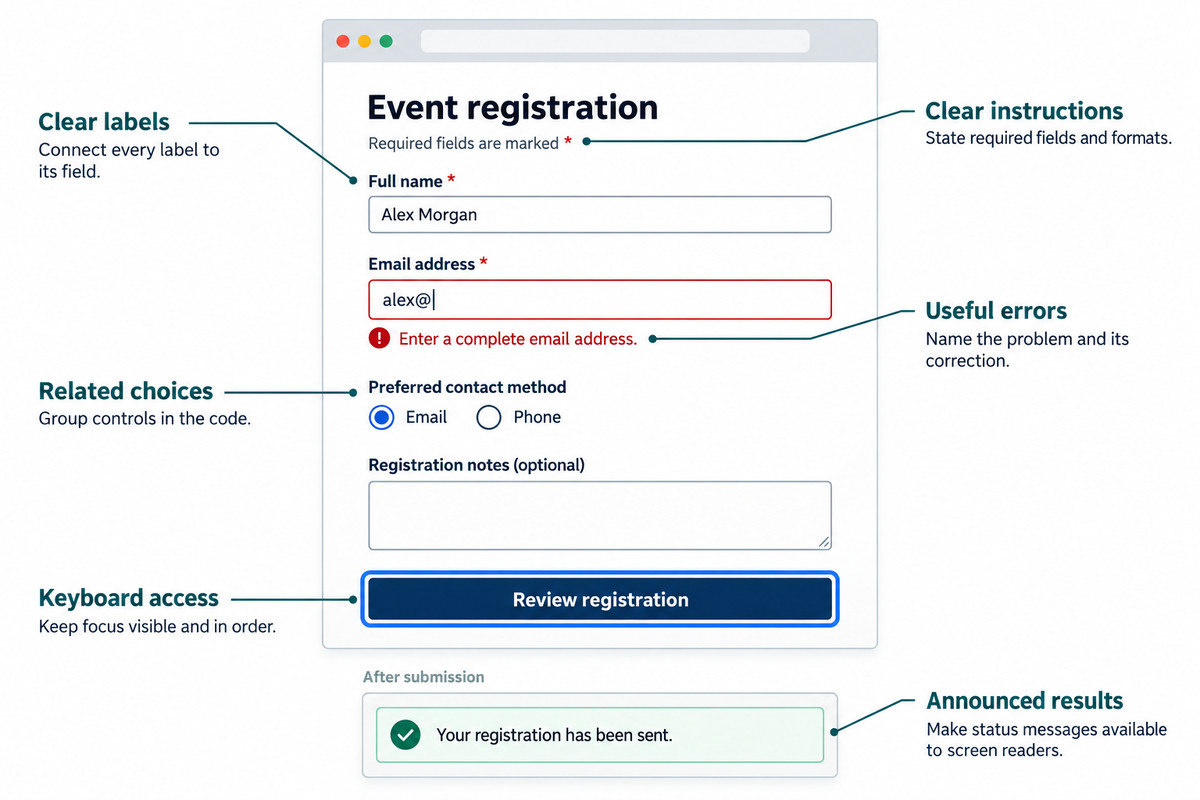
Overview: A sample web form titled "Event registration" sits in a browser window with three colored dots at the top left. Six callouts, three on each side, each name one practice and point with a line to the part of the form it applies to. Below the form, a box under the gray heading "After submission" shows a confirmation message.
Clear labels (upper left): The callout reads "Clear labels" and "Connect every label to its field." Its line points to the label "Full name *" above a field that holds the sample name "Alex Morgan".
Clear instructions (upper right): The callout reads "Clear instructions" and "State required fields and formats." Its line points to the line "Required fields are marked *" under the form title.
Useful errors (middle right): The callout reads "Useful errors" and "Name the problem and its correction." Its line points to the red message "Enter a complete email address." with a red exclamation mark icon. The message sits under the field "Email address *", which holds "alex@" inside a red outline.
Related choices (middle left): The callout reads "Related choices" and "Group controls in the code." Its line points to "Preferred contact method", with two round buttons: "Email", which is selected, and "Phone". Below them is an empty box labeled "Registration notes (optional)".
Keyboard access (lower left): The callout reads "Keyboard access" and "Keep focus visible and in order." Its line points to a dark blue "Review registration" button with a bright blue focus outline around it.
Announced results (lower right): The callout reads "Announced results" and "Make status messages available to screen readers." Its line points to the box under "After submission", where a green check mark sits beside "Your registration has been sent." inside a pale green outline.
If you are creating any kind of document that uses one or more forms to collect information, it is critical that you follow the International Accessibility Standards when creating your forms. Those standards are the Web Content Accessibility Guidelines (WCAG) 2.2, published by the World Wide Web Consortium (W3C). This page covers only the Level AA success criteria that apply to forms, grouped under the four WCAG principles of Perceivable, Operable, Understandable, and Robust, and each one links to its W3C Understanding page and to one technique the W3C lists as sufficient, written in HyperText Markup Language (HTML), Cascading Style Sheets (CSS), Accessible Rich Internet Applications (ARIA), or general terms. Level AA conformance also requires every Level A success criterion, and those are listed in Understanding WCAG 2.2, linked at the end of this page.
Why this matters to Screen Reader Users
When a message that the form was sent appears without a status role, a Blind Screen Reader User never hears it and cannot know whether the form went through. When an error message such as Invalid entry appears beside a field without a status role, a Blind Screen Reader User does not hear it and does not learn which entry failed. When an error message names the mistake but not the fix, a Blind Screen Reader User learns that a field is wrong but cannot find out how to correct it. When headings and labels do not describe their sections and fields, a Blind Screen Reader User who moves through a list of headings, or from heading to heading, cannot tell what each part of the form is for.
“For a blind college student who cannot submit an assignment because a university website is inaccessible, delay is not an abstraction.” -Mark Riccobono, Thirty-four years is long enough to make government websites accessible
Perceivable
Every piece of information and every control in a form is presented in a way that each person can perceive.
1.3.5 Identify Input Purpose (Level AA)
Mark common fields that ask about the person, such as name, email address, and street address, in the code so a browser can identify what each one is for. The browser then fills in that information, so People with Disabilities related to language or memory are not stopped by having to recall and type it.
1.4.3 Contrast (Minimum) (Level AA)
Labels, instructions, placeholder text, and error messages stand out from their background by a contrast ratio no lower than 4.5 to 1, or 3 to 1 for large text. Faint placeholder text or faint labels keep People with Low Vision from reading what a field asks for.
- Understanding 1.4.3 Contrast (Minimum)
- G18: Ensuring that a contrast ratio of at least 4.5:1 exists between text (and images of text) and background behind the text
1.4.10 Reflow (Level AA)
When someone zooms in, the text and fields of a form rewrap to fit the width of the screen instead of running past its edge. Labels and inputs that do not rewrap push part of each line off the screen, which keeps a person who enlarges text from reading the whole label.
1.4.11 Non-text Contrast (Level AA)
Field borders, checkboxes, focus indicators, and other visual cues that identify a control reach a contrast of 3 to 1 against the colors next to them. Boundaries with low contrast keep People with Low Vision from finding where a field is or which control has focus.
Operable
People are able to operate every control and move through every part of the form.
2.4.6 Headings and Labels (Level AA)
Each label says plainly what goes in its field, and each heading says what its section covers. Vague labels keep people from knowing what to enter, and Screen Reader Users who move from heading to heading cannot tell the sections apart.
2.4.7 Focus Visible (Level AA)
Whichever field or button has keyboard focus shows an indicator that people can see. Without one, a person who uses the keyboard and sees the screen cannot tell where they are in the form and cannot operate it.
- Understanding 2.4.7 Focus Visible
- G165: Using the default focus indicator for the platform so that high visibility default focus indicators will carry over
2.5.8 Target Size (Minimum) (Level AA)
Buttons, checkboxes, and other targets measure 24 CSS pixels or more on each side, or have enough space around them. Small targets packed close together keep people with hand tremors and other physical disabilities from selecting the right one.
- Understanding 2.5.8 Target Size (Minimum)
- C42: Using min-height and min-width on target container to ensure sufficient target spacing
Understandable
People understand what a form says and the way it works.
3.3.3 Error Suggestion (Level AA)
When the form knows how to fix an error, it says how, for example by showing the format an email address takes. Without a suggestion, people who know a field is wrong but not why abandon the form.
3.3.4 Error Prevention (Legal, Financial, Data) (Level AA)
When a form commits someone legally or financially, or changes or deletes their data, people can check and correct their answers, confirm before the final step, or reverse the submission afterward. Without that safeguard, a single mistake on such a form carries serious consequences.
- Understanding 3.3.4 Error Prevention (Legal, Financial, Data)
- G98: Providing the ability for the user to review and correct answers before submitting
3.3.8 Accessible Authentication (Minimum) (Level AA)
Signing in does not depend on solving a puzzle, remembering something, or copying out a code by hand. A Completely Automated Public Turing test to tell Computers and Humans Apart (CAPTCHA) or a passcode that must be retyped keeps people whose disabilities affect memory, reading, or numbers from logging in at all.
- Understanding 3.3.8 Accessible Authentication (Minimum)
- H100: Providing properly marked up email and password inputs
Robust
The code of a form is sound enough that a wide variety of browsers and access technology interpret it reliably.
4.1.3 Status Messages (Level AA)
Messages that appear without moving focus, such as word that a form was sent or a count of errors, are marked in the code so access technology announces them. Unmarked, those messages stay silent, and Blind People do not learn whether the form went through.
What Community Builders can do this week
Each of these steps takes one person and a form you already run, such as a sign up, a registration, an event RSVP, or a feedback form.
- Press Tab to move through your own form and watch for a visible outline on each field and button. Any place where you lose sight of where you are is a barrier to remove (2.4.7 Focus Visible).
- Zoom your browser to 400 percent and check that every label and field still fits the width of the window, with no scrolling sideways (1.4.10 Reflow).
- Read every label and heading on the form, and rewrite any that do not say plainly what goes in the field or what the section covers (2.4.6 Headings and Labels).
- Type an email address without its @ sign and send the form. Check that the message says how to fix the entry, not only that something is wrong (3.3.3 Error Suggestion).
- If your registration takes a payment, add a page where people review and correct their answers before the final step (3.3.4 Error Prevention (Legal, Financial, Data)).
- If signing in or registering asks people to solve a puzzle, remove the puzzle (3.3.8 Accessible Authentication (Minimum)).
“Equity differs from absolute equality in that it does not dictate that all be treated in exactly the same way. While everyone is endowed with talents and abilities, the full development of these capacities may require different approaches. It is equity that ensures that access and opportunity are fairly distributed so that this development might take place.” -Bahá’í International Community, Valuing Spirituality in Development, 18 February 1998
Questions for Reflection
- Which forms does our community use to invite people in, such as sign ups, registrations, event RSVPs, and feedback forms, and when did someone last go through each one at 400 percent zoom, with a screen reader, and while watching where keyboard focus is? What did they find?
- Who builds and changes our forms, and which of the success criteria on this page do they check before a form goes out? Where is that check written down, and who makes sure it happens?
- Which People with Disabilities, including Blind People and Screen Reader Users, have tested our forms, and were they asked before a form was finished or only after it was in use? How was their time and expertise recognized?
- When someone cannot complete one of our forms, how do they tell us, how quickly do we answer, and what changed in the form the last time someone did?
- Which of our forms still show an error without saying how to fix it, hide where keyboard focus is, take a payment with no review step, or ask people to solve a puzzle to sign in? Who will remove each one, and by what date?
- Six months from now, how will we know whether more People with Disabilities are signing up, registering, and giving feedback through our forms, and what will we count?
Top resources
Here are some of the top resources for creating Accessible Forms that will help you learn how to handle each of these things correctly so that they will be Accessible:
